


Is rank tracking accuracy slipping? Learn how Google’s goto redirects and poisoned SERPs affect rank trackers, and how to verify drops in Search Console.
Most SEO reporting is still too manual. Someone opens Google Search Console, checks indexing issues, exports data, compares last week’s errors, updates a sheet and sends a summary to the team.
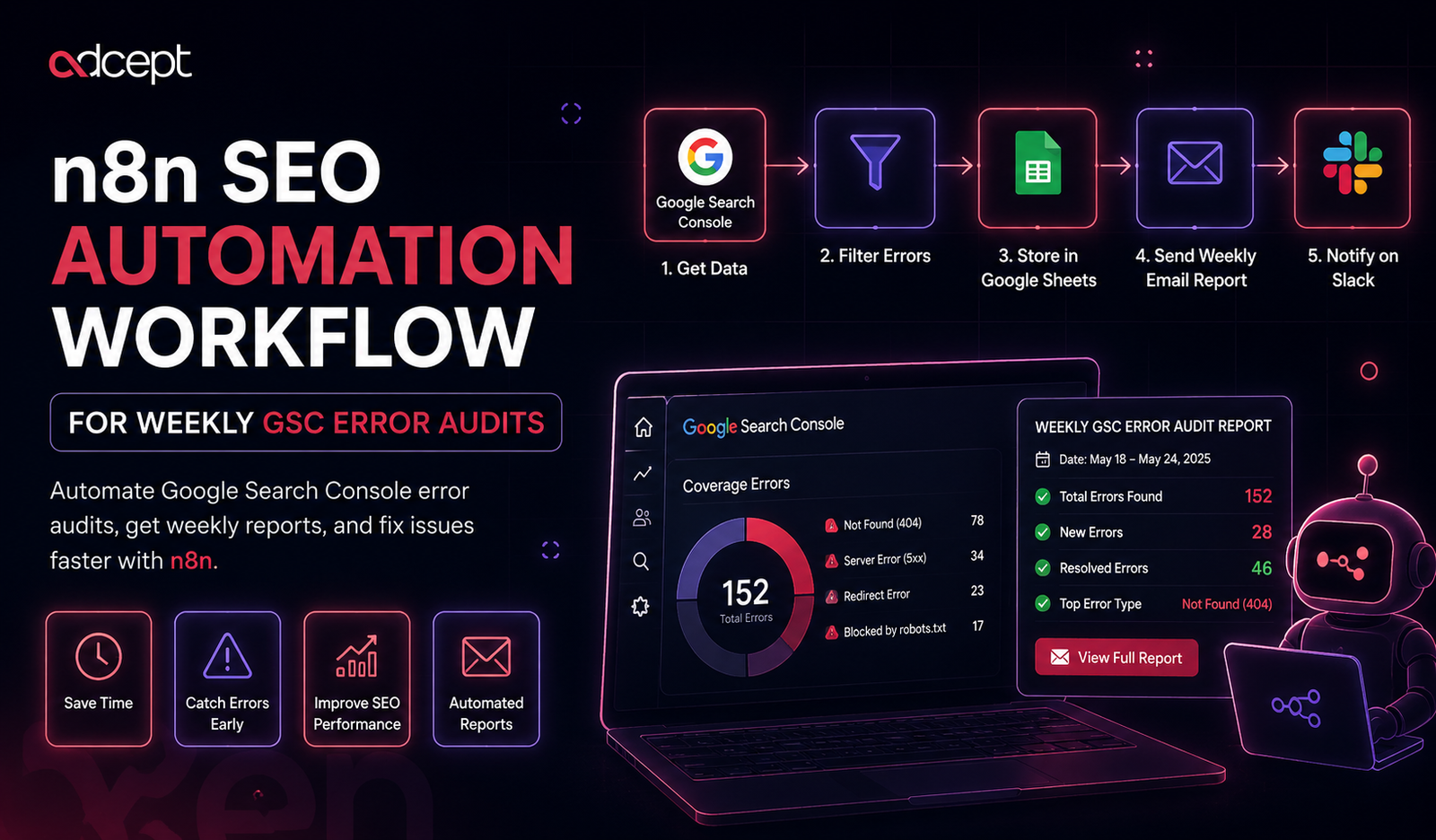
So we built an n8n SEO automation workflow that audits important URLs every week, checks Google Search Console data, flags indexing and performance issues, writes the results into Google Sheets and sends a short alert to the SEO team.
This is not a theory post.
It is a technical build-log for the workflow structure, logic and decision points we used.
What This n8n SEO Automation Workflow Does
This n8n SEO automation workflow runs every week and checks a priority list of URLs against Google Search Console data. It identifies indexing problems, performance drops, missing sitemap signals and URLs that need human review.
The workflow does five things:
-
Runs every Monday morning.
-
Pulls priority URLs from Google Sheets.
-
Checks URL-level data through the Search Console API.
-
Classifies each URL as healthy, warning or critical.
-
Sends a weekly SEO audit summary to the team.
The goal is not to replace an SEO specialist.
The goal is to remove repetitive checking so the specialist can focus on diagnosis and action.
Why We Built It
Google Search Console is useful, but checking it manually every week across many URLs is slow.
For agency work, the problem gets bigger.
You may have:
-
Multiple client properties
-
Different sitemap structures
-
Priority landing pages
-
New blog URLs
-
Service pages
-
Ecommerce category pages
-
Recently fixed technical issues
-
Pages waiting for reindexing
Manual checks often miss small changes.
Automation helps turn SEO monitoring into a repeatable operating system.
Why Automate Google Search Console Reporting?
Automating Google Search Console reporting helps SEO teams find issues faster, reduce manual exports and keep a record of weekly changes. It is especially useful for indexing checks, page performance drops, technical SEO follow-up and regular client reporting.
Google’s Search Console API gives programmatic access to Search Analytics, Sitemaps, Sites and URL Inspection services, which makes it suitable for automated SEO workflows.
Workflow Architecture
The workflow has a simple structure.
This structure keeps the workflow easy to debug.
Each node has one job.
If something fails, we can quickly see whether the issue is the URL list, API call, classification code, reporting sheet or alert step.
Tools and APIs Used
We used n8n because it gives more control than many basic automation tools.
n8n’s HTTP Request node can query almost any app or service through API calls, which is useful when a dedicated node does not cover the exact SEO use case.
The main tools are:
Google’s Search Analytics API can query search traffic data with filters and dimensions such as page, query, country and device. It also notes that API results are bounded by Search Console limits and may return top rows rather than every possible row.
The URL Inspection API uses a POST request to inspect a URL’s status in Google’s index.
Step-by-Step Build
Step 1: Schedule the Weekly Audit
The first node is a Schedule Trigger.
We set it to run every Monday at 8:00 AM.
This gives the SEO team a fresh technical snapshot at the start of the week.
Recommended setting:
-
Trigger interval: Weekly
-
Day: Monday
-
Time: 08:00
-
Timezone: Australia/Melbourne
n8n’s Schedule Trigger can run workflows at specific times or intervals, making it the right starting point for recurring reporting.
Step 2: Store Priority URLs in Google Sheets
We used Google Sheets as the control table.
Each row represents one URL that needs weekly monitoring.
Recommended columns:
This keeps the workflow flexible.
The SEO team can add or remove URLs without editing n8n.
n8n’s Google Sheets node supports actions such as reading, appending and updating spreadsheet data.
Step 3: Loop Through Each URL
Next, the workflow loops through each row.
This matters because the URL Inspection API works at URL level.
For each URL, the workflow passes:
-
Search Console property URL
-
Inspection URL
-
Page type
-
Priority
-
Expected status
-
Owner
This allows the later classification step to apply business logic.
For example, a noindexed thank-you page should not be treated the same as a noindexed service page.
Step 4: Call the URL Inspection API
The HTTP Request node sends a POST request to the URL Inspection endpoint.
Request body example:
{
“inspectionUrl”: “https://example.com/service-page/”,
“siteUrl”: “sc-domain:example.com”,
“languageCode”: “en-US”
}
The response can include the inspection result link, index status result and fields such as coverage state. Google’s documentation describes
coverageState as the field that indicates whether Google could find and index the page.Useful fields to capture:
-
coverageState -
robotsTxtState -
indexingState -
pageFetchState -
googleCanonical -
userCanonical -
sitemap -
referringUrls -
inspectionResultLink
This gives the SEO team enough detail to decide what needs action.
Step 5: Call the Search Analytics API
The second HTTP Request node checks page performance.
We compare the last 7 days with the previous 7 days.
Request body example:
{
“startDate”: “2026-07-22”,
“endDate”: “2026-07-28”,
“dimensions”: [“page”],
“dimensionFilterGroups”: [
{
“filters”: [
{
“dimension”: “page”,
“operator”: “equals”,
“expression”: “https://example.com/service-page/”
}
]
}
],
“rowLimit”: 1
}
We repeat the same request for the previous period.
Then the Code node calculates:
-
Click change
-
Impression change
-
CTR change
-
Average position change
This helps separate indexing errors from performance warnings.
A page can be indexed but still losing impressions.
Error Classification Logic
The workflow uses a Code node to classify each URL.
We kept the logic simple so the SEO team can understand it.
const item = $json;
let status = “Healthy”;
let issue = “No major issue detected”;
let severity = “Low”;
const coverage = item.coverageState || “”;
const clicksDelta = Number(item.clicksDelta || 0);
const impressionsDelta = Number(item.impressionsDelta || 0);
const priority = item.priority || “Medium”;
if (!coverage.toLowerCase().includes(“indexed”)) {
status = “Indexing Issue”;
issue = coverage;
severity = priority === “High” ? “Critical” : “High”;
}
if (coverage.toLowerCase().includes(“blocked”)) {
status = “Blocked”;
issue = “URL may be blocked from indexing”;
severity = “Critical”;
}
if (impressionsDelta <= -30 && status === “Healthy”) {
status = “Performance Drop”;
issue = “Impressions dropped by more than 30% week on week”;
severity = priority === “High” ? “High” : “Medium”;
}
return {
…item,
auditStatus: status,
auditIssue: issue,
severity
};
What Counts as a GSC Error?
In this workflow, a GSC error means any URL-level issue that needs SEO review. This includes non-indexed priority pages, blocked pages, unexpected canonical changes, crawl problems, missing sitemap signals or major week-on-week performance drops.
We do not treat every warning as urgent.
A low-priority blog with fewer impressions is not the same as a service page disappearing from search.
Google Sheets Output
The workflow writes every weekly result into an audit log sheet.
Recommended output columns:
This sheet becomes the audit history.
Over time, it shows which pages keep failing, which fixes worked and where developers need to step in.
Slack or Email Alert Format
The final node sends a summary to Slack or email.
Example message:
Weekly GSC Audit Completed
Critical: 2 URLs
High: 5 URLs
Medium: 9 URLs
Healthy: 43 URLs
Top issues:
-
/ai-automation/ — Non-indexed priority page
-
/seo-services/ — Impressions down 42%
-
/contact/ — Unexpected canonical mismatch
Audit sheet:
[Google Sheet Link]
This alert is short on purpose.
The team does not need a long report in Slack.
They need the issue count, top risks and a link to the sheet.
n8n vs Zapier for SEO Automation
The n8n vs Zapier SEO question usually comes down to control.
Zapier is easier for simple app-to-app automations.
n8n is better when the workflow needs API calls, loops, custom logic, branching and more technical control.
When Is n8n Better Than Zapier for SEO?
n8n is usually better than Zapier for SEO automation when the workflow needs custom API calls, loops, data transformation, conditional logic, self-hosting or technical control. Zapier is better for simpler trigger-action workflows that do not need much custom processing.
For this GSC audit workflow, n8n was the better fit.
The URL Inspection API, Search Analytics comparison and custom issue scoring need more control than a basic automation.
Exportable Workflow Blueprint
Below is a simplified import blueprint.
It is not a full credential-ready file because every Google account, sheet ID, Slack workspace and Search Console property is different.
Use it as the build structure.
{ “name”: “Weekly GSC SEO Audit”, “nodes”: [ { “name”: “Weekly Schedule”, “type”: “n8n-nodes-base.scheduleTrigger”, “position”: [0, 0] }, { “name”: “Read Priority URLs”, “type”: “n8n-nodes-base.googleSheets”, “position”: [220, 0] }, { “name”: “Loop URLs”, “type”: “n8n-nodes-base.splitInBatches”, “position”: [440, 0] }, { “name”: “Inspect URL in GSC”, “type”: “n8n-nodes-base.httpRequest”, “position”: [660, -120] }, { “name”: “Get Search Analytics”, “type”: “n8n-nodes-base.httpRequest”, “position”: [660, 120] }, { “name”: “Classify SEO Issues”, “type”: “n8n-nodes-base.code”, “position”: [900, 0] }, { “name”: “Append Audit Result”, “type”: “n8n-nodes-base.googleSheets”, “position”: [1120, 0] }, { “name”: “Send Weekly Alert”, “type”: “n8n-nodes-base.slack”, “position”: [1340, 0] } ] }
Screenshot Checklist for Publication
Add these screenshots when publishing the article:
-
n8n full workflow canvas
-
Google Sheets priority URL input sheet
-
HTTP Request node for URL Inspection API
-
Code node classification logic
-
Google Sheets audit output
-
Slack weekly alert message
These screenshots make the post much harder to copy because they show the real build, not just the idea.
Common Mistakes
Mistake 1: Trying to Pull Every URL
Do not start by inspecting thousands of URLs.
Start with priority pages.
The URL Inspection API is best used for selected URLs, not unlimited crawling.
Mistake 2: Treating Every Warning as Critical
SEO alerts need context.
A low-value old blog does not need the same attention as a money page.
Mistake 3: Ignoring Search Console Limits
Google states that Search Analytics API results are subject to internal Search Console limitations and may return top rows rather than all possible rows.
Build your reports with that limitation in mind.
Mistake 4: No Human Review
Automation should flag issues.
An SEO specialist should still interpret the cause and decide the fix.
Mistake 5: No Historical Log
If the workflow only sends alerts, you lose the trend.
Always write results into a sheet, database or dashboard.
Best Practices
Use these rules when building an n8n SEO automation workflow:
-
Keep one node responsible for one job.
-
Use Google Sheets as a simple control table.
-
Audit high-priority URLs first.
-
Store every weekly result.
-
Add severity scoring.
-
Compare current week with previous week.
-
Add retry settings to API nodes.
-
Send short alerts, not long reports.
-
Keep human review in the process.
-
Review false positives monthly.
Expert Tip
Build the workflow around decisions, not data exports.
The best automation does not just say, “Here is the data.”
It says, “Here are the pages that need attention this week.”
Conclusion
This n8n SEO automation workflow gives SEO teams a repeatable way to audit Google Search Console issues every week.
It checks priority URLs, uses the Search Console API, compares performance, classifies issues, logs results and alerts the team.
The real value is not the automation itself.
The value is turning technical SEO monitoring into a clear weekly habit.
For agencies and growing businesses, this kind of workflow reduces manual checking and helps teams respond faster when important pages lose visibility.
If your business wants to automate SEO reporting, connect Google Search Console with dashboards or build custom technical SEO workflows, Adcept can help design automation that fits your stack and reporting process.
Key Takeaways
-
An n8n SEO automation workflow can reduce manual GSC checks.
-
Google Search Console API supports Search Analytics, URL Inspection, Sitemaps and Sites.
-
URL Inspection is useful for selected priority URLs.
-
Search Analytics can show page-level performance changes.
-
Google Sheets works well as a simple control and audit log.
-
n8n is often better than Zapier for technical SEO workflows.
-
The workflow should classify issues by business priority.
-
Human review is still needed before SEO or development fixes.
FAQs
1. What is an n8n SEO automation workflow?
An n8n SEO automation workflow is an automated process that uses n8n to collect, process and report SEO data from tools such as Google Search Console, Google Sheets, Slack and analytics platforms.
2. Can you automate Google Search Console reporting?
Yes. You can automate Google Search Console reporting using the Search Console API, n8n HTTP Request nodes, Google Sheets and scheduled workflows. This can support weekly reports, indexing checks and performance monitoring.
3. Can n8n check Google Search Console errors?
Yes, n8n can check selected URL-level issues by calling the Google Search Console URL Inspection API. It can also use Search Analytics data to detect page-level traffic or impression drops.
4. Is n8n better than Zapier for SEO automation?
n8n is usually better for technical SEO automation that needs custom API calls, loops, code logic and flexible data handling. Zapier is often easier for simple app-to-app notifications.
5. What should a weekly GSC audit include?
A weekly GSC audit should include priority URL index status, performance drops, canonical changes, sitemap signals, crawl issues, severity level, owner and recommended next action.
6. Do I need coding to build this workflow?
You can build a basic version with limited coding, but custom classification logic usually needs some JavaScript inside n8n’s Code node.
7. Should I inspect every URL on my website?
Usually, no. Start with priority pages such as service pages, product pages, category pages and new content. Inspecting every URL may be unnecessary and harder to manage.
8. Can this workflow be used for client SEO reporting?
Yes. Agencies can adapt this workflow for client reporting by adding client names, property URLs, severity scoring, Looker Studio dashboards, and separate Slack or email summaries.